Help
Set up your frame
Three minutes, no app. If anything here doesn't match what you see, write to us and a human will help.
Charge it.
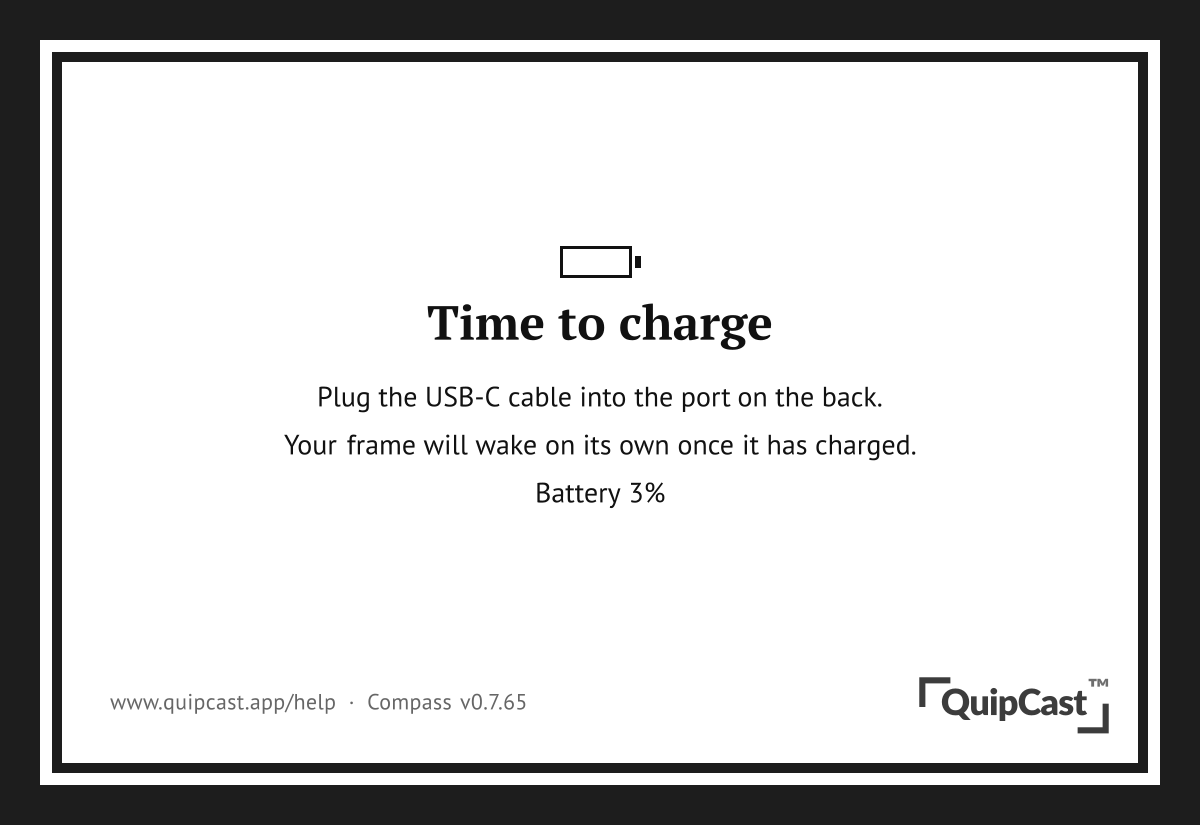
Plug the included USB-C cable into the port on the back of the frame. The first charge takes 2 to 3 hours; you can keep going with setup while it charges. If the screen shows a "Battery empty" card, just leave it plugged in. It wakes up on its own once it has enough charge, no button needed.
Connect it to WiFi.
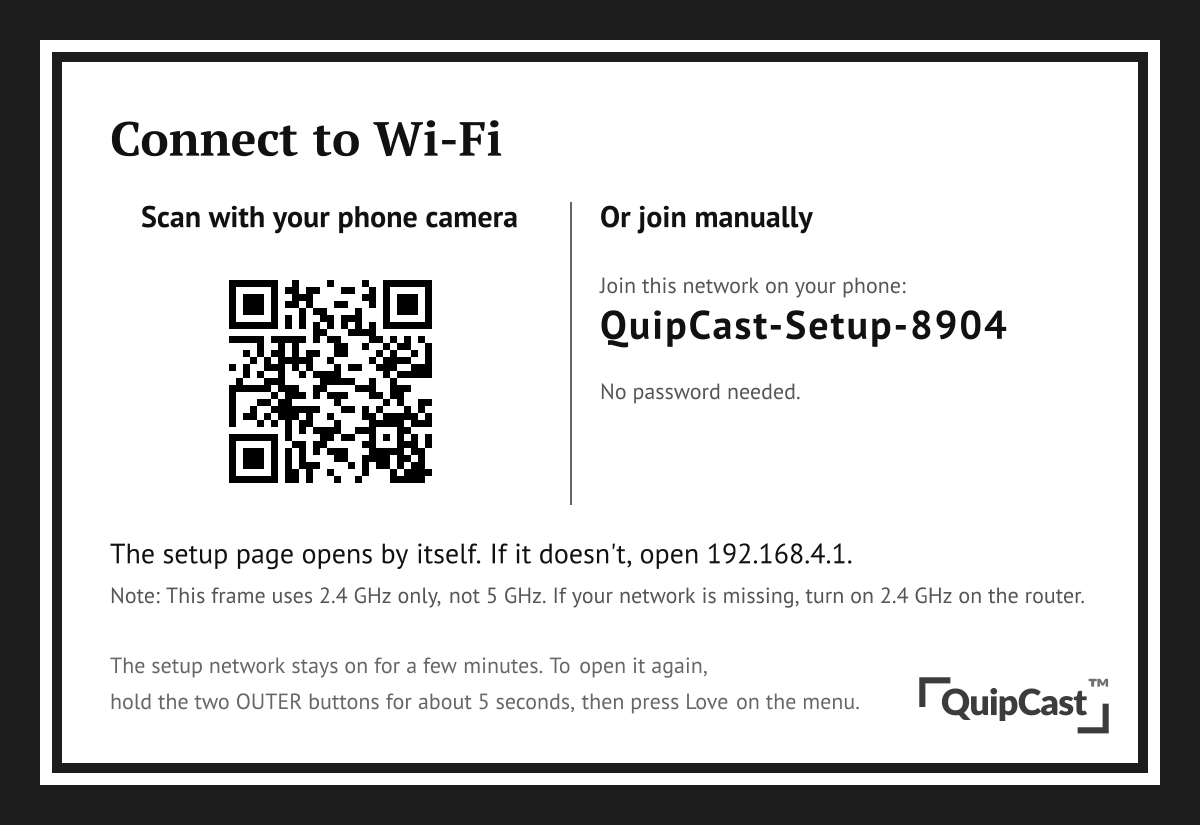
If the frame needs a network, it shows a setup screen with the name of its own temporary WiFi network. On your phone, join that network, and a setup page opens where you pick your home WiFi and enter its password. The frame can only see 2.4 GHz networks; if yours doesn't appear, check that 2.4 GHz is enabled on your router. You can bring the setup screen up anytime: hold the two OUTER buttons together for 6 seconds, then press Love.
Pair it to your account.
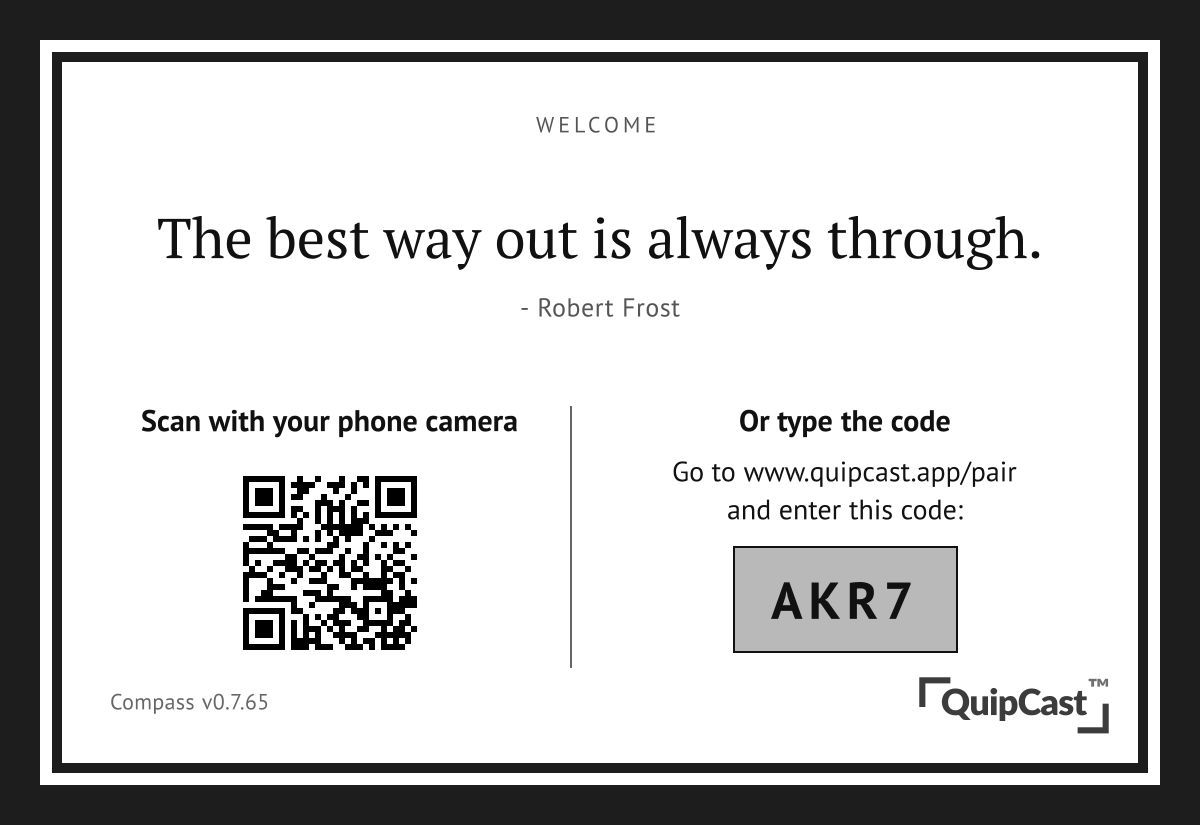
Once online, the frame shows an 8-character code. Visit quipcast.app/pair on your phone or laptop, sign in, and type the code. Your first quip appears moments later. Enter the code soon after it appears; if it goes stale the frame simply issues a fresh one.
Hang it.
Eye level, somewhere you naturally glance: over a desk, in a hallway, by the kettle. The sawtooth hanger on the back sits flush on a standard picture nail or hook (hardware not included).
The three buttons
Along the bottom of the frame: Love, Pass, and Next. One press each, and they work whether the frame is awake or asleep (any press wakes it).
- Love
- The quip on screen stays right where it is, and we show you more in that spirit. It also lands in your Favorites on the dashboard. The screen doesn't change when you press it; that's by design, since the whole point of loving a quip is keeping it on the wall.
- Pass
- A fresh quip appears in a few seconds, this exact quip leaves your rotation, and we quietly steer away from its author and topic. You can review and undo passes from your dashboard.
- Next
- A fresh quip appears in a few seconds, and no opinion is recorded. This is also the everyday "wake up and show me something new" button.
A few seconds of quiet, then a brief flash as the ink physically rearranges: that's electronic paper working, not a glitch. Tapping the same button repeatedly counts once, and mashing different buttons together deliberately does nothing, so curious kids can't change your settings.
Moving, new router, or new WiFi password
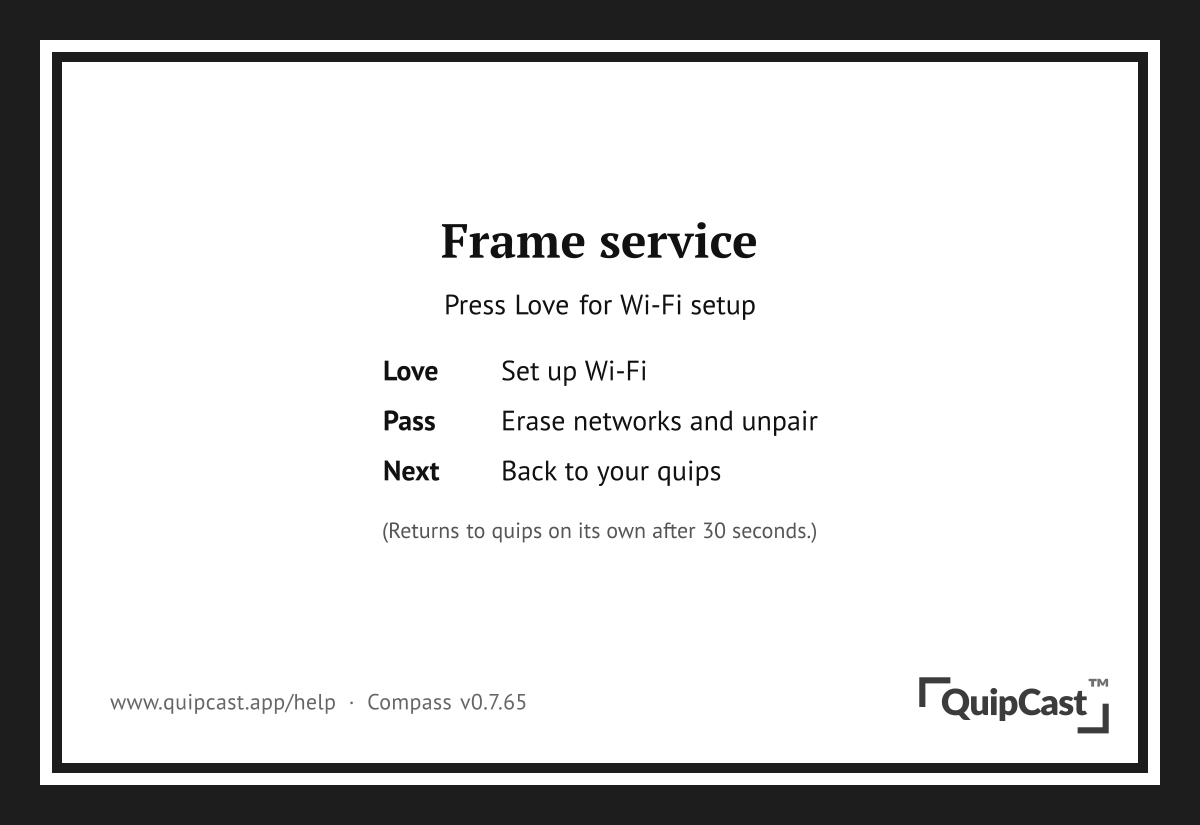
Hold the two OUTER buttons (Love and Next) together for about 6 seconds. The frame shows a service menu with its options labeled on screen: press Love to open WiFi setup, press Pass to erase all saved networks (it asks you to confirm), or press Next to go back to your quips. If you do nothing for 15 seconds it returns to quips by itself. A frame that can't reach any known network will also open its setup screen on its own periodically.
Battery and charging
The frame tells you on screen when it needs a charge. Lift it off its hook, plug the USB-C cable into the port on the back, and let it drink. It wakes up on its own once it has recovered and picks up right where it left off. On a daily refresh cadence a charge lasts months; faster cadences trade battery for freshness, and you can change yours anytime from the dashboard.
If something seems off
- The screen hasn't changed in a while.
- Press Next. E-paper holds its image with zero power, so a resting frame looks identical to a stuck one; a press settles the question. If nothing happens within half a minute, charge it through the back port and try again.
- It shows "Can't reach WiFi."
- The frame retries on its own, backing off politely. If your network actually changed, hold the two outer buttons for 6 seconds and press Love to set up the new one.
- It shows "Battery empty."
- Plug in the back port and leave it alone. It re-checks itself every half hour and resumes on its own; no button press needed.
Still stuck? Contact us or write to hello@quipcast.app. Include what the screen shows and we'll take it from there.